Your cart is empty.
No products in the cart.
Seven settings that keep Sierra Chart smooth under heavy orderflow charts - from disk and GPU to data load and studies.
Sierra Chart constantly reads and writes its Data folder. On a mechanical drive that disk I/O is the bottleneck; on an SSD it effectively disappears.
SierraChart\Data folder on an SSD (NVMe is ideal).OpenGL hands chart drawing to your GPU, freeing the CPU and making pan and zoom noticeably smoother on dense charts.
Global Settings › Graphics Settings → tick Use OpenGL for Chart Graphics.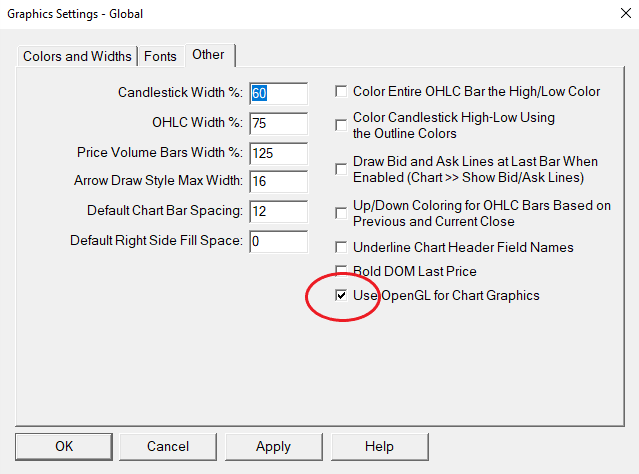
By default Sierra Chart runs in a single process. Sub-instances let it use several CPU cores, so a heavy chartbook stays responsive instead of fighting for one core.
Global Settings → enable additional instances and assign chartbooks to them.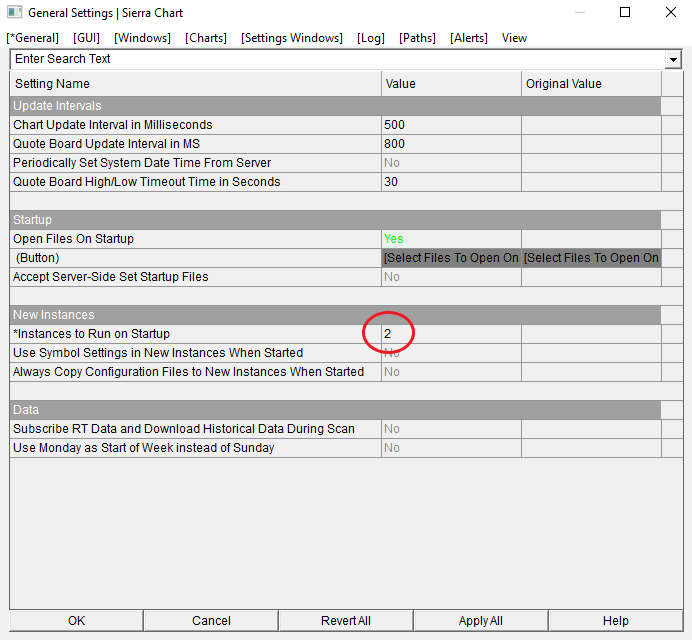
The update interval controls how often a chart redraws. A slightly higher value cuts CPU load with no real change in how the chart reads.
Chart Settings › Chart Update Interval → try 500 ms on heavy charts.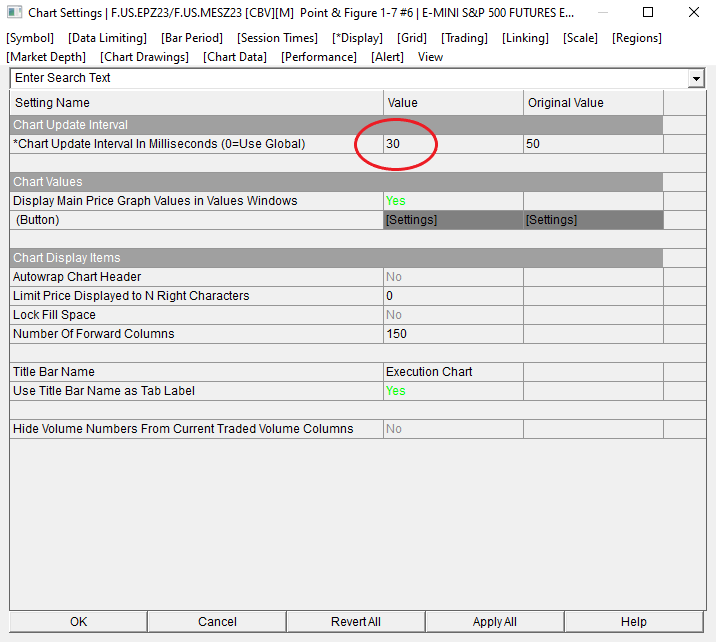
Every extra day of intraday data is more to load, store and recalculate. Cap each chart to the lookback you actually trade.
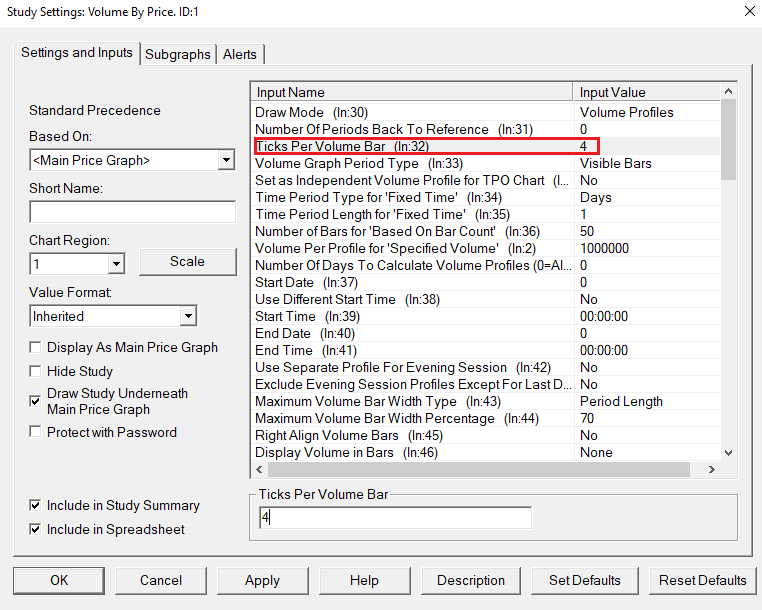
Chart Settings › Days to Load → keep it to your real lookback.A Volume Profile draws a row per price tick. On high-resolution instruments that is thousands of rows; a larger tick size renders the same profile far faster.
Studies → open the Volume Profile study.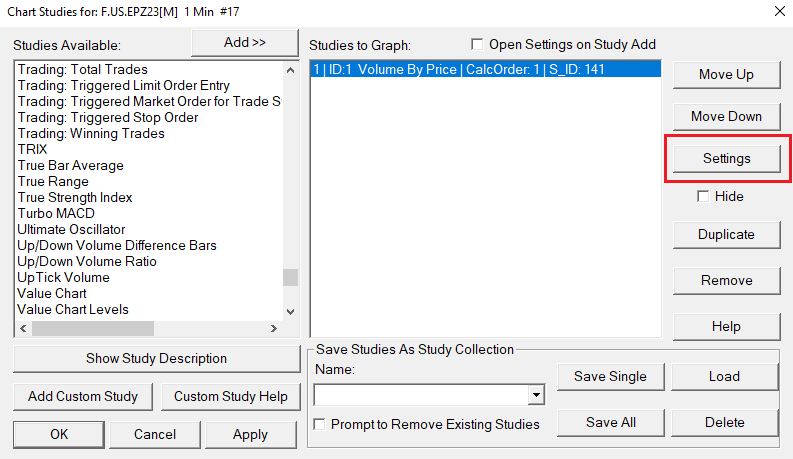
Every study recalculates on each update. Trimming the ones you don't actively trade is the simplest way to reclaim CPU.